
Managing a holiday rental in Spain requires more than just a beautiful property and a warm welcome. Since the introduction of the mandatory SES Hospedajes (Spain's digital guest registration platform), compliance has moved almost entirely online. To submit guest data, communicate with the tax authorities (Agencia Tributaria), or register a new property, a digital certificate is your most essential tool.
A digital certificate acts as your electronic ID card. In this guide, we are referring specifically to a Spanish digital certificate exported as a .p12 or .pfx file — the format that includes the private key and lets you authenticate with Spanish government systems. These certificates are available for both individuals and companies. It proves to the Spanish government that you, or your property management company, are who you say you are. However, simply obtaining the certificate is only half the battle. You need to know how to install it, back it up, and move it between your devices to ensure you never lose access to critical compliance portals.
At Villa Check In, we specialize in making this process painless. As an approved digital certificate authority, we can issue certificates remotely without the need for in-person appointments at a Spanish consulate or government office. Once you have your certificate, follow this guide to master its management on both Windows and macOS.
Managing Certificates on Windows (PC)
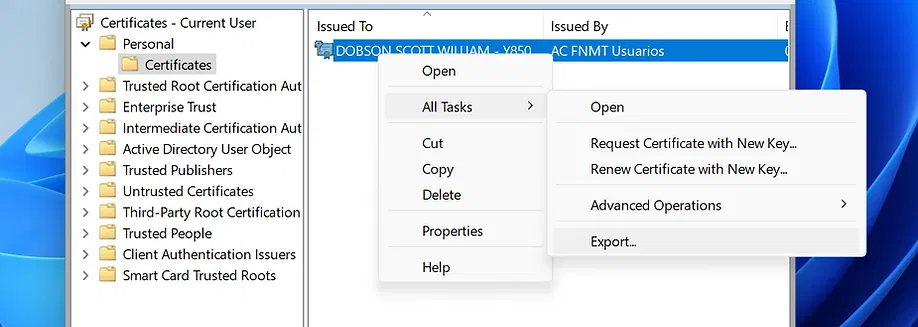
Windows uses a centralized system called the Certificate Store to manage your digital identities. If you need to back up your certificate or move it to another device, follow the exact export process below to avoid errors later.
How to Export Your Certificate on Windows 11
- Open Certificate Manager — Press
Win + R, typecertmgr.msc, and press Enter. - Navigate to your certificate — Go to Certificates — Current User > Personal > Certificates.
- Start the Export Wizard — Right-click your certificate and select All Tasks > Export.
- Choose to export the private key — Select Yes, export the private key when prompted.
- Select the correct format — Choose PKCS#12 (.PFX).
- Tick the required checkboxes — Enable:
- Include all certificates in the certification path if possible - Export all extended properties
- Set a password — Create a strong password to protect the file.
- Save the file — Choose a secure location and complete the export.
This gives you a usable backup of your Spanish digital certificate with the private key included — typically saved as a .pfx file on Windows — which is essential if you want to reinstall the certificate later or share it securely with an authorised manager.
Managing Certificates on macOS (Mac)
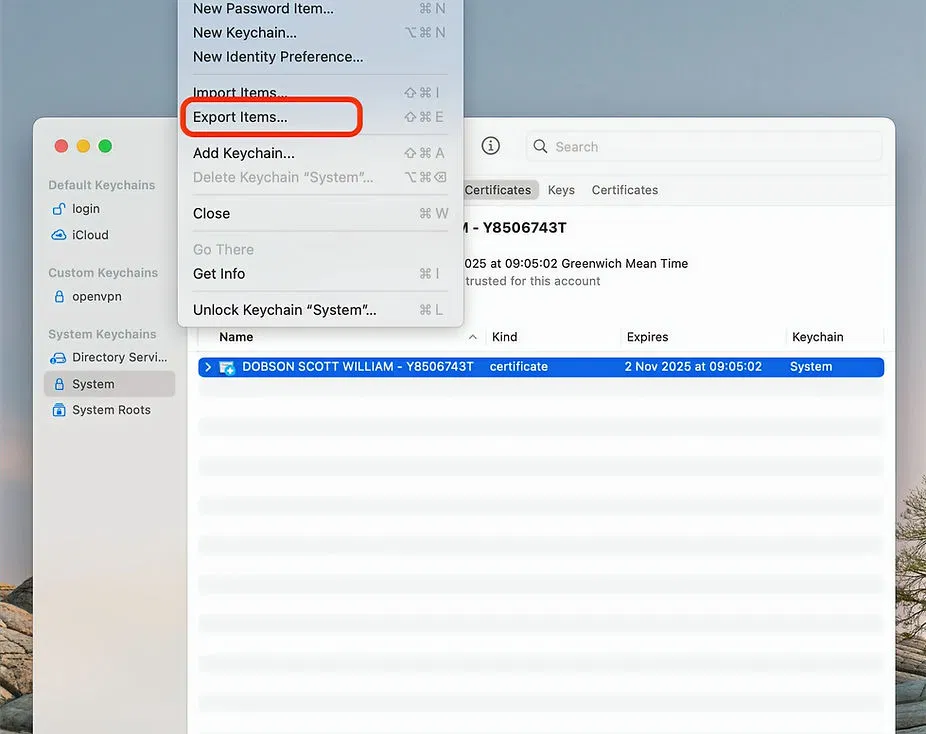
On a Mac, certificates are managed through Keychain Access. If you use macOS Sequoia, follow these steps to export the certificate correctly.
How to Export Your Certificate on macOS Sequoia
- Open Keychain Access — Go to Applications > Utilities > Keychain Access.
- Select the right location — Open the Login keychain and choose the My Certificates category.
- Choose your certificate — Find the certificate you want to back up.
- Export the file — Right-click the certificate and export it as .p12 or .pfx.
- Set a protection password — Create a password to secure the exported file.
Keep this password somewhere safe. You will need it whenever you import the Spanish digital certificate on another device from the exported .p12 or .pfx file.
If you still need to obtain your certificate before exporting it, read our guide on what a digital certificate is or order one here.
Browser Integration — Chrome, Edge, and Safari
One common point of confusion for property owners is where to find the certificate settings within their web browser.
- Google Chrome & Microsoft Edge — These browsers do not have their own internal certificate stores on Windows or Mac. Instead, they act as a window into your operating system's store. On Windows, they pull from
certmgr.msc; on Mac, they pull from Keychain Access. If you install the certificate correctly in the OS, it will automatically appear in these browsers. - Safari — Like Chrome on Mac, Safari relies entirely on Keychain Access.
When you visit a Spanish government portal — like the SES Hospedajes site — the browser will prompt you with a pop-up window asking which certificate you would like to use for authentication.
The Importance of the Private Key
When you export a certificate, you are often given the choice to export it with or without the private key.
- With Private Key (.pfx/.p12) — This is the complete backup format for a Spanish digital certificate. It allows the certificate to be used for signing and authentication on a new device. You must always protect these files with a password.
- Without Private Key (.cer/.crt) — This is just the public portion of your certificate. It can be used to identify you, but it cannot be used to log into government portals or sign documents.
Always ensure your backups include the private key — otherwise, the file will be useless for compliance tasks like submitting guest registrations.
How Villa Check In Simplifies Compliance
Navigating the technicalities of digital certificates can be a headache for holiday rental owners. Between understanding what a digital certificate is and managing the registration of multiple properties, the workload adds up quickly.
Villa Check In removes this friction. We provide:
- Remote Issuance — We are a certified authority, meaning we can issue your Spanish digital certificate without you ever leaving your home. If you need to order one, use our services form.
- Seamless Integration — Our platform connects directly to your Property Management System (PMS) like Guesty or Lodgify, using your certificate to automate guest data submission to the authorities.
- Expert Support — If you run into trouble with installation or export, our team provides immediate support to ensure your holiday rental stays compliant and operational.
By mastering your digital certificate, you secure your business's digital identity and ensure that you are always ready to meet the evolving legal requirements of the Spanish holiday rental market.

Summary of Key Actions
Managing your digital identity should not be a barrier to running a successful rental business. Keep these points in mind:
- Back up immediately — Export your certificate with the private key and store it in a secure location to avoid losing access.
- Follow the exact export path — On Windows 11, use
certmgr.mscand go to Certificates — Current User > Personal > Certificates. On macOS Sequoia, use Keychain Access > Login > My Certificates. - Choose the correct file type — Export as PKCS#12 (.PFX) on Windows or .p12/.pfx on macOS so the private key stays included.
- Enable the required options — On Windows, tick Include all certificates in the certification path if possible and Export all extended properties to create a complete backup.
- Protect the file with a password — Use a strong password and keep it safe so only authorised users can import the certificate.
- Get help if needed — If you still need a certificate, review our guide on what a digital certificate is or apply here.
Ready to simplify your Spanish holiday rental compliance? Get started with Villa Check In today and secure your digital certificate remotely.